
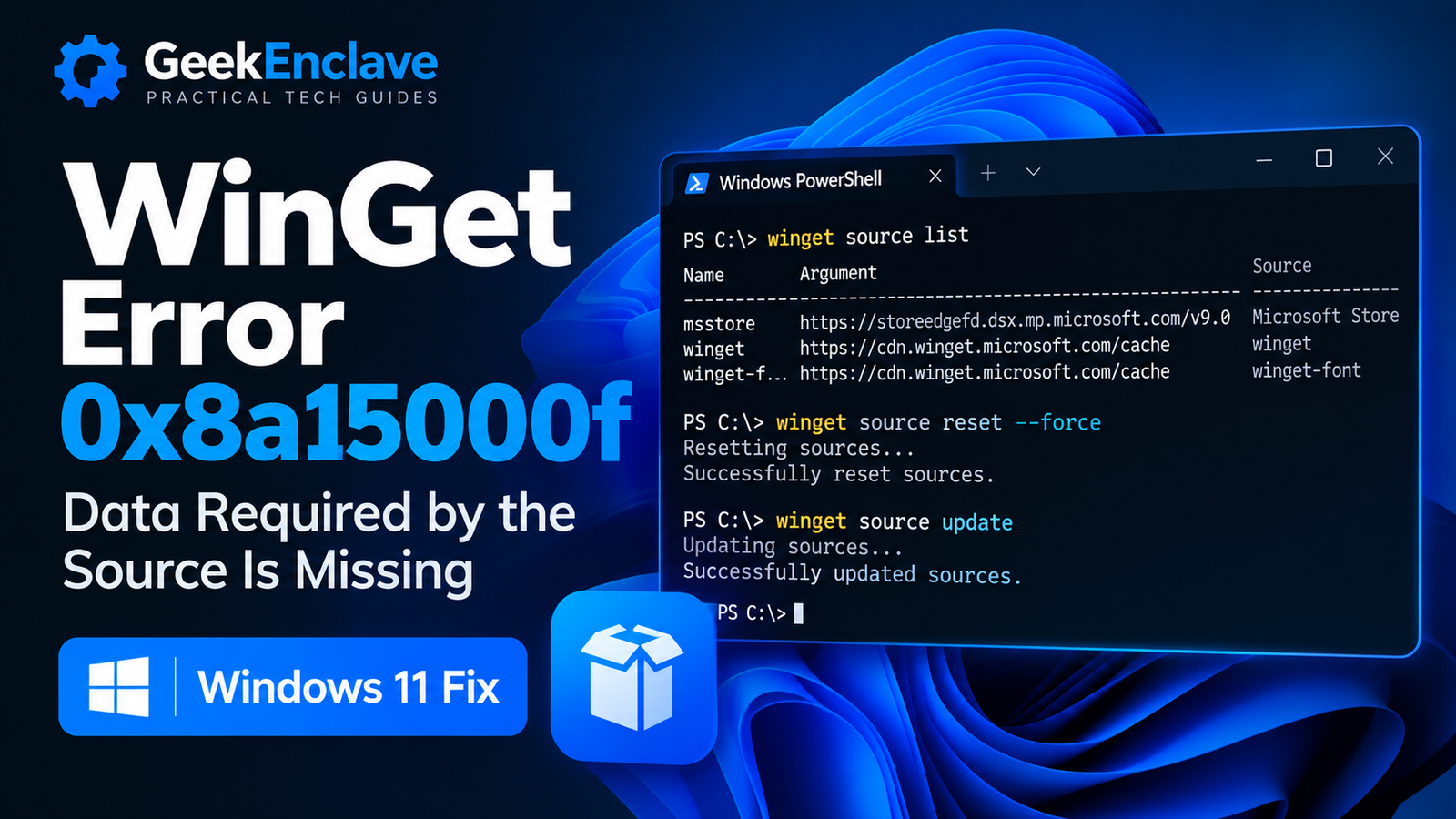
WinGet error 0x8a15000f — “Data required by the source is missing” — usually appears when WinGet cannot read the package data it expects from one or more configured sources. In many cases, the WinGet client itself still works, but searches, upgrades or source operations fail because the source metadata is missing, outdated or damaged.
This guide starts with the least invasive fixes and then moves to source reset, App Installer repair and package re-registration if the error continues.
Quick Fix
Open Windows Terminal, PowerShell or Command Prompt as Administrator and run these commands in order:
winget source reset --forcewinget source updatewinget source listThen test WinGet with:
winget search 7zip --accept-source-agreementsIf the search returns results, the source configuration is working again.
What Causes WinGet Error 0x8a15000f?
The error indicates that WinGet cannot access data required by one of its configured sources. Common causes include damaged source metadata, an outdated App Installer package, a missing WinGet source package, or a source that can no longer be reached correctly.
The three default WinGet sources are currently msstore, winget and winget-font. The winget-font source is explicit by default, which means normal searches do not automatically query it unless it is specifically requested.
Method 1: Check the Current WinGet Sources
Run:
winget source listA normal installation should show the default sources, including msstore and winget. If a source is missing, duplicated or points to an unexpected address, continue with the reset procedure below.
Method 2: Reset the WinGet Sources
Open PowerShell or Command Prompt as Administrator and run:
winget source reset --forceThis restores WinGet’s default source configuration and removes non-default sources.
After the reset completes, update the sources:
winget source updateThen check them again:
winget source listMethod 3: Accept the Source Agreements
If WinGet reaches the Microsoft Store source but stops to display terms or region information, accept the source agreements explicitly during the test search:
winget search 7zip --accept-source-agreementsThe –accept-source-agreements option accepts source agreements during source operations and prevents an interactive agreement prompt from blocking the command.
Method 4: Update App Installer
WinGet is delivered through Microsoft’s App Installer package. If App Installer is outdated, WinGet may be using old source information or may fail to register source components correctly.
- Open Microsoft Store.
- Search for App Installer.
- Install any available update.
- Close every PowerShell, Command Prompt and Windows Terminal window.
- Open a new terminal window and run winget source update again.
Microsoft community reports for this exact error include cases where updating App Installer resolved an outdated source URL problem.
Method 5: Re-register the WinGet Source Package
If resetting the sources does not fix the problem, the Microsoft.Winget.Source package may not be registered correctly.
First check whether Windows can locate its manifest:
Resolve-Path "C:\Program Files\WindowsApps\Microsoft.Winget.Source_*\AppXManifest.xml"If a valid path is returned, re-register the source package with:
Add-AppxPackage -DisableDevelopmentMode -Register $(Resolve-Path "C:\Program Files\WindowsApps\Microsoft.Winget.Source_*\AppXManifest.xml") -VerboseAfter the command completes, close PowerShell, reopen it and run:
winget source updatewinget search 7zip --accept-source-agreementsMethod 6: Check Whether the WinGet Source Package Is Missing
Run the following PowerShell command:
Get-AppxPackage Microsoft.Winget.SourceIf PowerShell returns no package information, the source package itself may be missing. In that situation, update App Installer first and retry the WinGet source commands.
Microsoft community reports for this error also include systems where Microsoft.Winget.Source was absent entirely.
Method 7: Check Network or Proxy Access
If the source configuration looks correct but source updates still fail, make sure the PC can reach the configured source addresses.
Run:
winget source listOn business devices, also check whether a proxy, web filter, firewall or endpoint security policy is blocking Microsoft Store or WinGet endpoints.
WinGet also supports explicit proxy and no-proxy options on current source and search commands, which can be useful when diagnosing a network-specific problem.
Final Validation
Run these commands after completing the fixes:
winget --versionwinget source listwinget search 7zip --accept-source-agreementsThe error is resolved if WinGet reports its version, lists the configured sources and returns package search results without 0x8a15000f.
Frequently Asked Questions
Does resetting WinGet sources remove installed applications?
No. Resetting WinGet sources changes the package-source configuration. It does not uninstall applications that are already installed.
Will winget source reset –force delete custom sources?
Yes. Microsoft states that resetting sources removes configured sources and restores the default sources. If you use a private or enterprise WinGet repository, record its configuration before performing a full reset.
Why does WinGet ask me to accept Microsoft Store terms?
The msstore source has source agreements that must be accepted before some operations can continue. Adding –accept-source-agreements allows the command to accept those terms without stopping for an interactive prompt.
Do I need to reinstall Windows to fix 0x8a15000f?
Normally, no. Source reset, App Installer repair or update, and source-package re-registration are substantially less invasive and should be tried first.
Related Guide
If the winget command itself is missing rather than returning a source error, see our guide: WinGet Is Not Recognized in Windows 11: How to Fix It.
WinGet Is Not Recognized in Windows 11: How to Fix It
Official Microsoft Resources
Summary
WinGet error 0x8a15000f usually points to a problem with the data required by one of WinGet’s package sources. Start by checking, resetting and updating the source configuration.
If the error continues, update App Installer and then check or re-register the Microsoft.Winget.Source package. In most cases, these repairs are enough to restore searches and package operations without reinstalling Windows.