
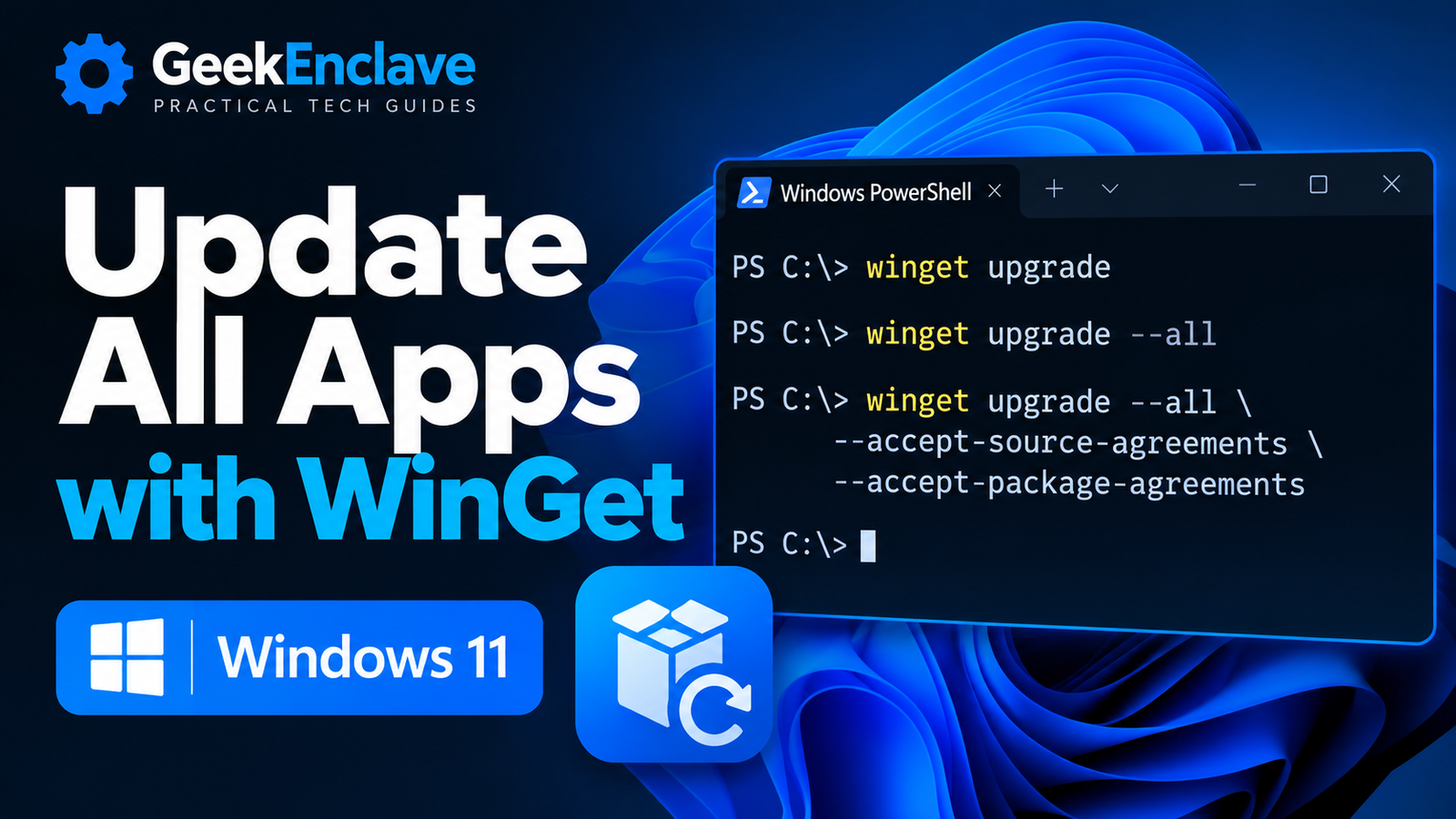
WinGet can check your installed applications for available updates and upgrade many of them from a single command. This is useful on Windows 11 systems where you want to update common applications quickly without opening each vendor’s updater separately.
This guide shows the safest way to preview available updates, upgrade all supported applications, accept package agreements automatically, deal with unknown versions and pinned packages, and troubleshoot common WinGet upgrade problems.
Quick Answer: Update All Apps with WinGet
Open Windows Terminal, PowerShell or Command Prompt and first check which applications have updates available:
winget upgradeReview the list, then upgrade all supported applications with:
winget upgrade --allTo avoid interactive source and package agreement prompts, use:
winget upgrade --all --accept-source-agreements --accept-package-agreementsMicrosoft recommends running winget upgrade without arguments first so you can review which applications will be changed before using --all.
Step 1: Check Which Apps Have Updates Available
Open Windows Terminal, PowerShell or Command Prompt and run:
winget upgradeWinGet will compare detected installed applications against the versions available from its configured package sources.
The results normally show the application name, package ID, installed version, available version and source.
Step 2: Upgrade All Supported Apps
After reviewing the available updates, run:
winget upgrade --allWinGet will attempt to upgrade every installed package for which it can identify an available newer version.
Some applications may still display their own installer interface or request elevation depending on how the vendor’s installer works.
Upgrade All Apps Without Agreement Prompts
If you are using WinGet interactively on multiple systems or from a script, agreement prompts can interrupt the process. Use:
winget upgrade --all --accept-source-agreements --accept-package-agreementsThis accepts source agreements and package license agreements where supported, allowing the upgrade process to continue without those prompts.
Include Apps with an Unknown Installed Version
WinGet may detect an installed application but be unable to determine its current version. These packages are not normally upgraded by --all.
To include them, use:
winget upgrade --all --include-unknownYou can combine this with the agreement options:
winget upgrade --all --include-unknown --accept-source-agreements --accept-package-agreementsUse --include-unknown deliberately, because WinGet cannot compare the installed version in the usual way for those applications.
What About Pinned Applications?
WinGet supports package pinning. A pinned application can be excluded from a normal winget upgrade --all operation.
To see existing pins, run:
winget pin listIf you intentionally want to include packages with a non-blocking pin, use:
winget upgrade --all --include-pinnedBlocking pins still prevent a normal upgrade unless the pin is removed or specifically overridden. This is useful when you need to keep an application on a tested version.
Upgrade a Single Application Instead
If you do not want to upgrade everything, first find the package ID:
winget upgradeThen upgrade a specific package by ID. For example:
winget upgrade --id Microsoft.PowerToysUsing the package ID is usually more precise than relying only on the application name.
Run WinGet as Administrator or Standard User?
You do not need administrator privileges for every WinGet command. However, some application installers require elevation to update system-wide software.
For a large upgrade session, opening Windows Terminal as Administrator can reduce interruptions, but individual package behaviour still depends on the installer and application scope.
A Useful Update Command for Routine Maintenance
For a manual maintenance session, this is a practical command:
winget upgrade --all --accept-source-agreements --accept-package-agreementsIf you also want packages whose installed version cannot be detected, use:
winget upgrade --all --include-unknown --accept-source-agreements --accept-package-agreementsFor managed business devices, check organisational software policies before bulk-upgrading applications outside your normal endpoint-management platform.
Why Some Apps Are Not Updated by WinGet
Not every installed application can be upgraded through WinGet. Common reasons include:
- The application is not available from one of your configured WinGet sources.
- WinGet cannot determine the application’s installed version.
- The package is pinned.
- The installed application does not match a package manifest closely enough.
- The installer has vendor-specific upgrade behaviour.
- The package requires interaction or additional permissions.
Troubleshooting: WinGet Upgrade Fails
If winget upgrade fails before listing or installing updates, first check that the client and package sources are healthy.
Run:
winget --versionwinget source listwinget source updateIf the WinGet command itself is missing, see our guide WinGet Is Not Recognized in Windows 11: How to Fix It.
If you receive error 0x8a15000f or a message saying required source data is missing, see How to Fix WinGet Error 0x8a15000f: Data Required by the Source Is Missing.
Frequently Asked Questions
Does winget upgrade –all update Windows itself?
No. WinGet primarily manages supported application packages. Windows operating system updates are handled through Windows Update and enterprise servicing tools.
Does WinGet update Microsoft Store apps?
WinGet can work with packages available through configured sources, including the Microsoft Store source, but whether an individual Store application is upgraded depends on package availability and how the application is managed.
Can I automate winget upgrade –all?
Yes, but automation should be tested carefully. Some installers may require elevation, user interaction or a reboot. In enterprise environments, application updates are often better controlled through tools such as Intune, Configuration Manager or another endpoint-management platform.
Why does WinGet skip some applications?
WinGet may skip an application if it cannot determine its version, the package is pinned, no matching package exists, or the package does not have an available upgrade.
Official Microsoft Resources
- Microsoft WinGet upgrade command documentation
- Microsoft Windows Package Manager documentation
- Microsoft WinGet package pinning documentation
Summary
The safest way to update applications with WinGet is to run winget upgrade first, review the available updates, and then use winget upgrade --all.
You can add agreement switches for unattended prompts, include packages with unknown versions when appropriate, and use package pins when certain applications should remain on a specific version. WinGet is a useful maintenance tool, but enterprise-managed devices should still follow organisational application-management policies.