
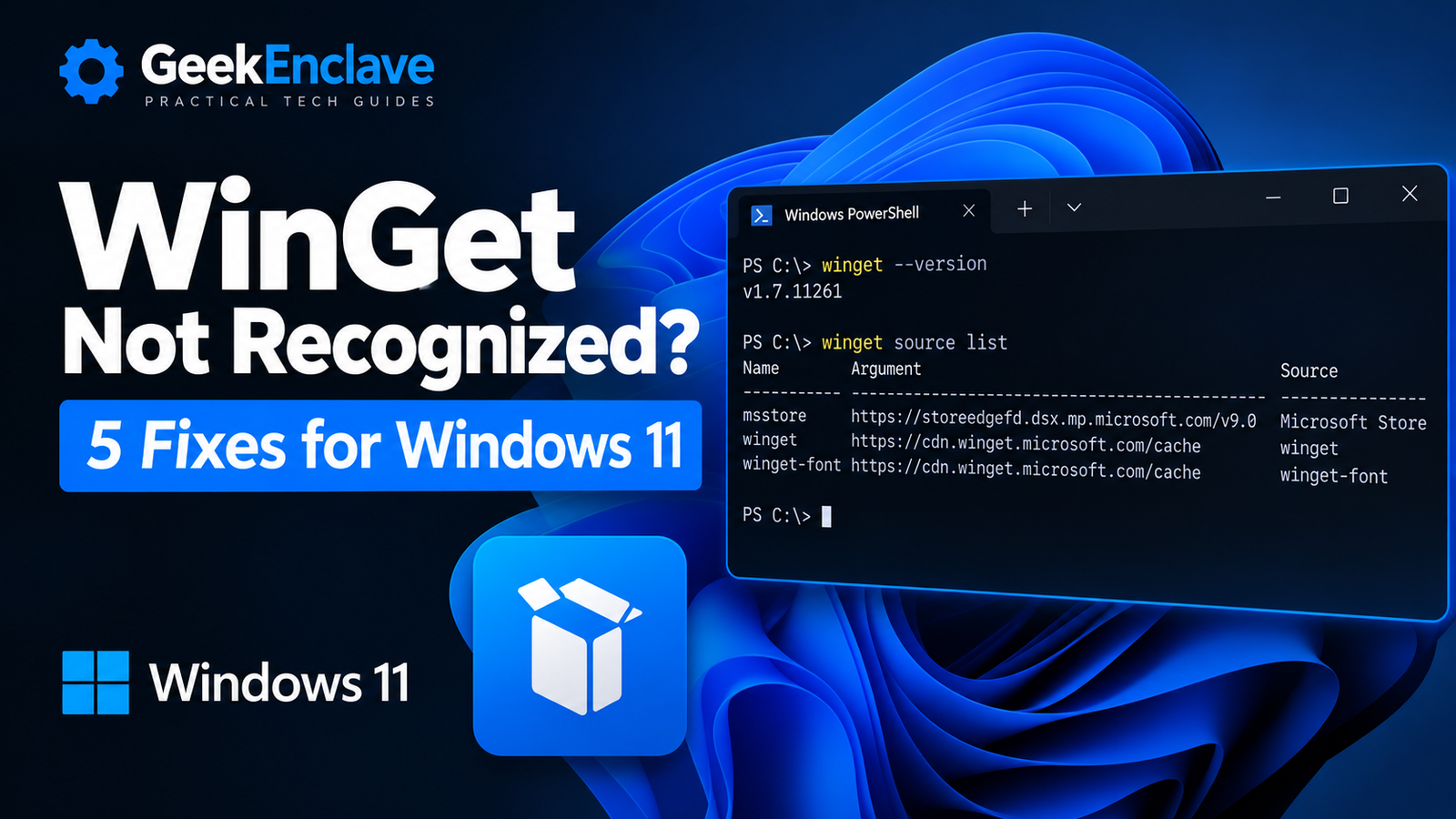
If WinGet is not recognized in Windows 11, the Windows Package Manager client may be missing, damaged, not registered correctly, or unable to access its package sources. This guide walks through the fixes in the safest order, starting with simple checks before moving to repair commands.
The steps below apply to Windows 11 systems where Command Prompt or PowerShell returns an error such as “‘winget’ is not recognized as an internal or external command” or where Winget is installed but searches and source updates fail.
Quick Check: Is WinGet Installed?
Open Command Prompt or PowerShell and run:
winget --versionIf WinGet is working, Windows should return a version number. If the command is not recognized, continue with Method 1 below.
Method 1: Install or Repair App Installer
Winget is distributed as part of Microsoft’s App Installer package. On Windows 11, repairing or reinstalling App Installer is usually the first thing to check when the Winget command is missing.
Option A: Microsoft Store
Open Microsoft Store, search for App Installer, and install or update it. After installation, close and reopen Command Prompt or PowerShell and run:
winget --versionOption B: Repair or Reset App Installer
- Open Settings
- Go to Apps → Installed apps
- Find App Installer
- Open Advanced options
- Try Repair
- If that does not work, use Reset
- Restart PowerShell or Command Prompt and test winget again
Method 2: Reset WinGet Sources
If Winget starts but searches or updates fail, the source configuration may be damaged. Microsoft provides a built-in source reset command for this.
Open Command Prompt or PowerShell as Administrator and run:
winget source reset --forcewinget source updatewinget source listA healthy source list should normally show the default Winget sources. If they update successfully, test a search:
winget search 7zip --accept-source-agreementsThe reset command restores WinGet’s default sources. Run it from an elevated Command Prompt or PowerShell window because resetting sources requires administrator privileges.
Method 3: Check App Execution Aliases
Windows can expose command-line applications through App Execution Aliases. If the WinGet alias is disabled or not registered correctly, the command may not be available even when App Installer is installed.
- Open Settings
- Go to Apps
- Open Advanced app settings
- Select App execution aliases
- Look for App Installer or winget
- Make sure the relevant alias is enabled
- Close and reopen Command Prompt or PowerShell
winget --versionMethod 4: Re-register App Installer
If App Installer is present but WinGet is still not available, re-registering the package can repair a broken registration.
Open PowerShell and run:
Get-AppxPackage Microsoft.DesktopAppInstallerIf the package is listed, re-register it with:
Get-AppxPackage Microsoft.DesktopAppInstaller | ForEach-Object {
    Add-AppxPackage -DisableDevelopmentMode -Register "$($_.InstallLocation)\AppXManifest.xml"
}
Close PowerShell, open it again, and test:
winget --versionMethod 4 or 5: Check WindowsApps PATH
WinGet is normally exposed through the WindowsApps folder in your user profile. If that location is missing from PATH, Windows may not find the command.
$env:Path -split ';'Check that a path similar to the following is present:
C:\Users\<username>\AppData\Local\Microsoft\WindowsAppsYou can also confirm whether the WinGet executable is visible with:
where.exe wingetIf nothing is returned, the command is not currently being resolved through PATH or App Execution Aliases.
Final Test
winget --version
winget source list
winget search 7zip --accept-source-agreements
If all three commands complete successfully, WinGet is working normally again.
If WinGet Still Does Not Work
If WinGet is still unavailable after repairing App Installer, checking aliases and re-registering the package, install the latest App Installer package from Microsoft Store or Microsoft’s official WinGet release source. On managed business devices, also check whether Microsoft Store access, App Installer deployment or WindowsApps execution is restricted by policy.
Common WinGet Errors and What They Mean
| Error | What it usually means |
|---|---|
'winget' is not recognized... | WinGet/App Installer is missing, not registered correctly, or not being resolved through PATH/aliases. |
0x8a15000f : Data required by the source is missing | WinGet source metadata is damaged or incomplete; resetting/updating sources usually fixes it. |
| Microsoft Store agreement prompt | The msstore source needs its terms accepted before the first search or install. |
| Search returns no results | Source update may have failed, or the requested package may not exist in the enabled sources. |
Frequently Asked Questions
Is WinGet included with Windows 11?
WinGet is normally delivered through Microsoft’s App Installer package. On most current Windows 11 systems it is already available, but it can be missing or broken if App Installer has not been installed, updated or registered correctly.
Can I reinstall WinGet without reinstalling Windows?
Yes. In most cases, repairing or reinstalling App Installer is enough. Reinstalling Windows should not be necessary just to fix WinGet.
Do I need Administrator rights to use WinGet?
Not for every command. Basic searches and some installs can run without elevation, but administrator rights may be required for system-wide installations, source repairs or package changes.
Why does WinGet work in one account but not another?
WinGet can depend on per-user App Installer registration and the user’s WindowsApps path. If it works for one Windows account but not another, check App Installer registration, App Execution Aliases and the affected user’s PATH.
Official Microsoft Resources
Summary
If WinGet is not recognized in Windows 11, start by checking App Installer. Repair or update it first, then verify App Execution Aliases, re-register the App Installer package and confirm that the WindowsApps directory is available through PATH.
If WinGet launches but searches or updates fail, reset and update its package sources. In most cases, these steps restore WinGet without reinstalling Windows.